(BR1 / MAX Series / Transit / Others)
Updating Cellular Module Firmware on Peplink Devices
Overview
Updating the cellular module firmware can resolve:
connectivity issues
carrier registration failures
SIM detection problems
modem instability
performance problems on specific carriers
This firmware is separate from the router firmware and updates the modem hardware module inside the router.
⚠️ Why an Alternate Connection is Required
The cellular module cannot be used and updated at the same time.
Because the update process requires an active internet connection AND disconnects the cellular modem during the update, it will NOT complete using cellular alone.
You must connect through:
WiFi as WAN Guide: CONNECT TO WIFI AS WAN
Ethernet WAN
a local network with internet access -LAN Cable to PepLink WAN port (if applicable)
Note: Loss of power during a modem update can permanently damage the modem. Do NOT unplug the device until the update completes.
Requirements
Before beginning, ensure:
The router is powered on
There is a stable non-cellular internet source
You can access the Admin Panel or InControl2
The router will remain powered throughout the update
✅ Method 1: Manual Update Through the Admin Panel
(No PrimeCare Required)
This method is performed through a PC or tablet web browser.
Using a mobile device may make navigation difficult.
Step 1 – Connect to the Admin Panel
Connect to the router via:
WiFi
Ethernet
Open a web browser and log in to the Admin Panel
Steps here: Accessing Peplink Admin Page
Step 2 – Modify the URL
(Direct access to Support Page)
Then, log in to your Admin Panel, and in the URL bar you will see the word 'index'.
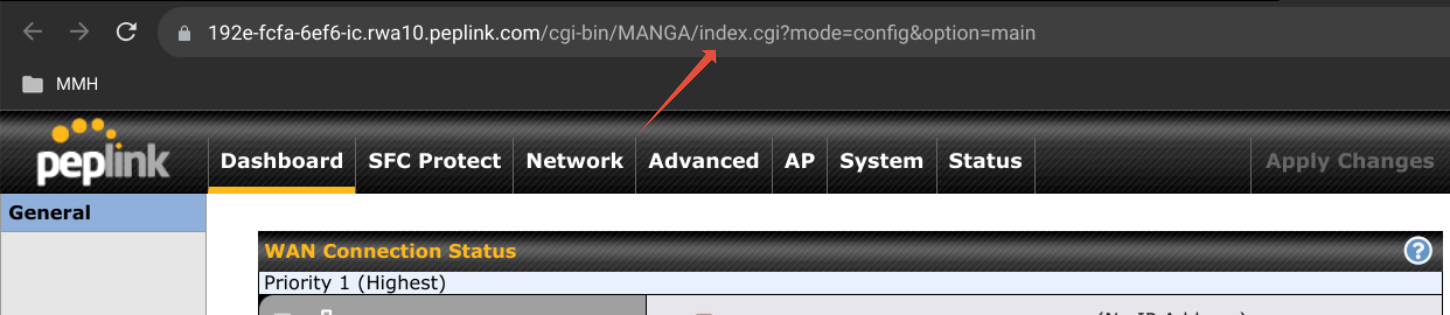
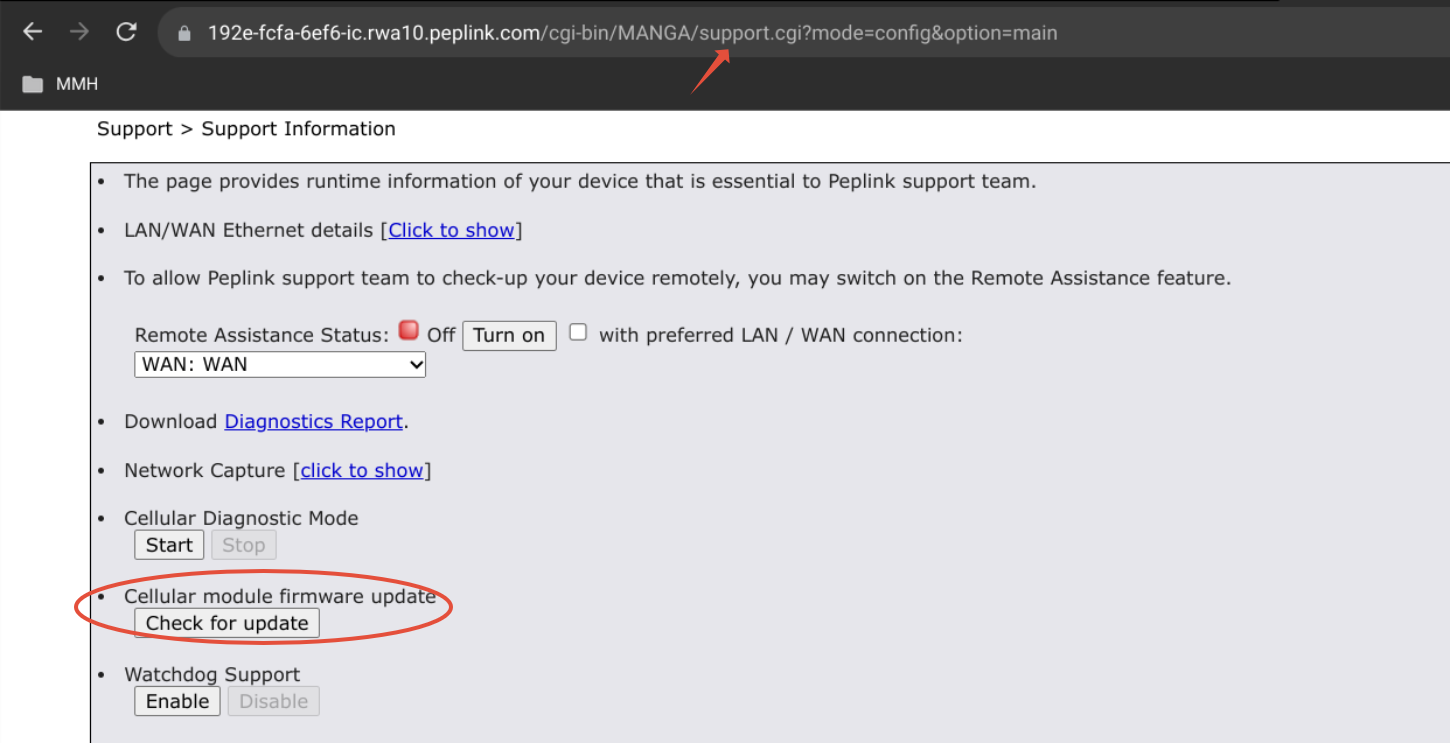

Select the modem entry and click:
✅ Update
During the update:
cellular sessions disconnect
update takes 5–20 minutes
DO NOT power off the router
If your 'current' and 'latest' match, then you are updated! If they are different, you are able to select the modem you wish to update and you will have an 'Update' button to the right where you can force an update again.
✅ Method 2: Update Through InControl2
(PrimeCare Subscription Required)
This method requires:
A valid PrimeCare subscription
InControl2 access
device online using an alternate connection
Connecting to an External WiFi Source with WiFi as WAN
Log in to your InControl2 account here: InControl2.PepLink.com
Select your group, then go to Device Management
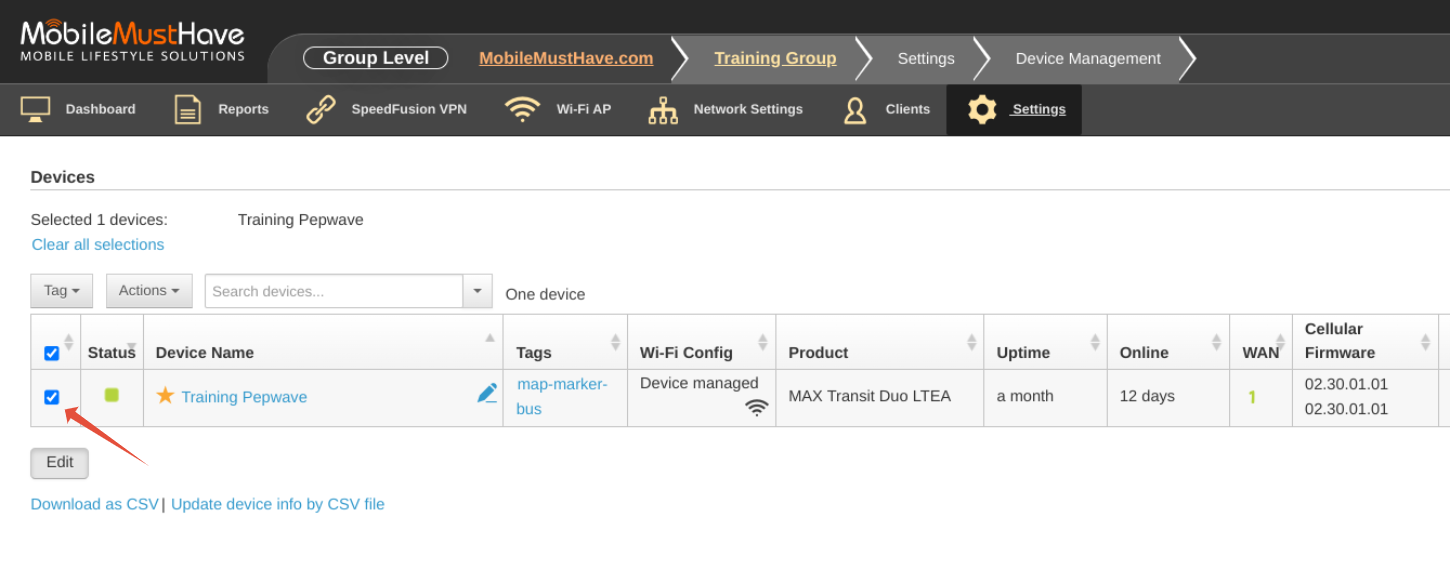 From your Device Management page in InControl, select/check your device.
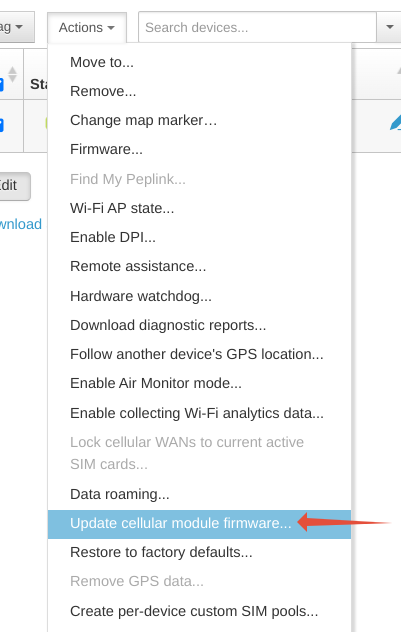
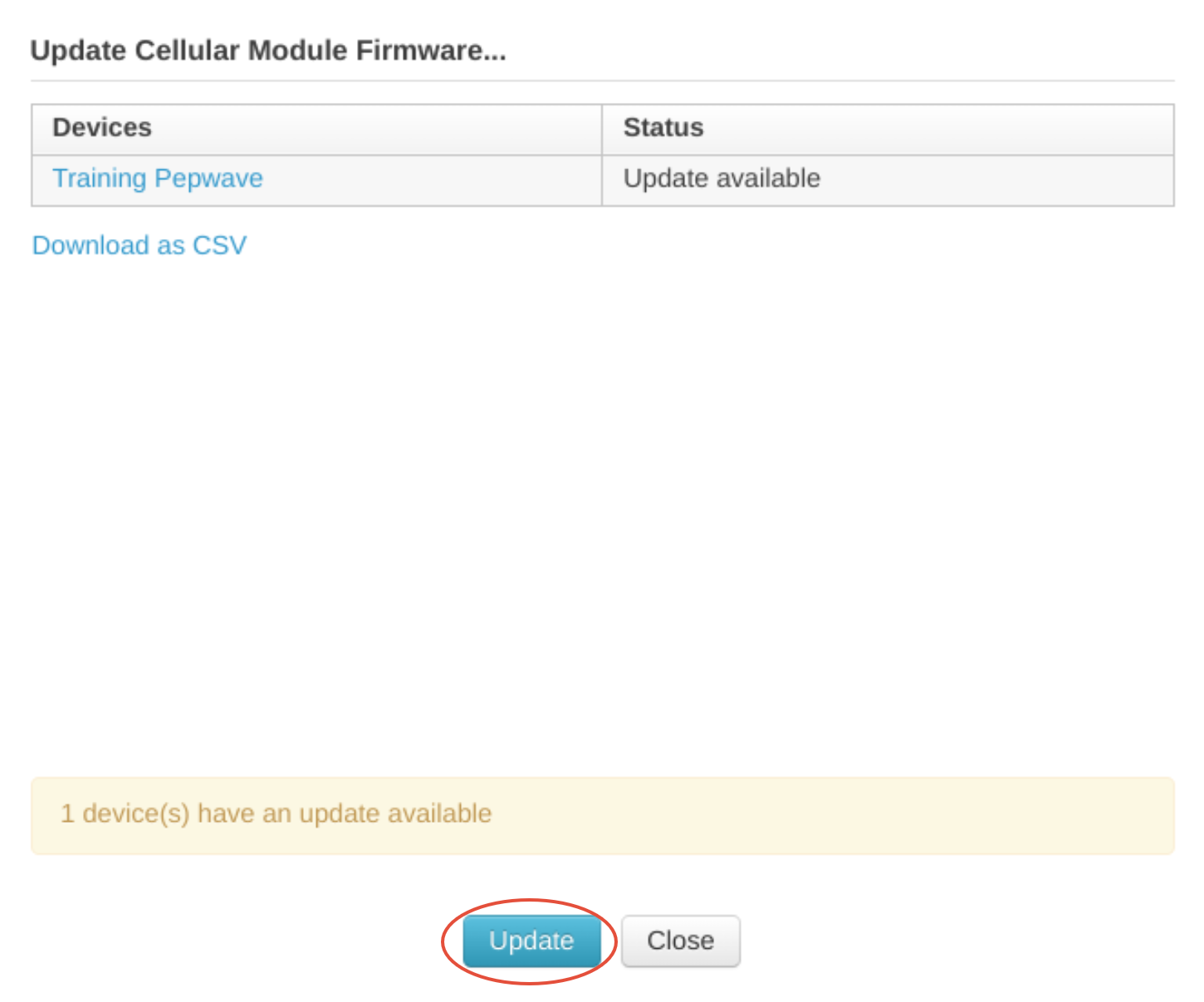
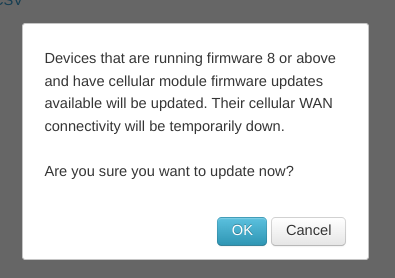
Each module update takes about 5-20 minutes to complete. Please do not power off your device until completion.
If you need additional assistance or would like help from our support team, please click the link below to open a support ticket and one of our technicians will be happy to work with you:
Was this article helpful?
That’s Great!
Thank you for your feedback
Sorry! We couldn't be helpful
Thank you for your feedback
Feedback sent
We appreciate your effort and will try to fix the article