 Member Sponsored Content
The following article is brought to you by our premium members. These articles are co-authored with our education & action partner, Mobile Internet Resource Center (MIRC), who provide in-depth content and independent analysis on all things mobile internet.
Consider joining our membership for full access and to be part of the conversation in our support forums. Members also receive premium discounts on equipment, data plans as well as upgraded shipping! Learn more...
TABLE OF CONTENTS
Article Summary
This article provides steps on setting the PepLink WAN port to properly recognize the StarLink system, as well as removing the following message from your Peplink admin panel. (select devices)

Before Getting Started
Make sure your PepLink is updated to the latest firmware:
You must also complete the following steps for the WAN port:
How to Enable Starlink Location Access (Starlink APP)
When using Starlink as a WAN connection on a Peplink router, you may see the following message:
“Starlink GPS location is currently unavailable (WAN)”
This message indicates that Starlink location sharing is disabled in the Starlink app.
This setting is optional and does not affect connectivity, but enabling it allows the Peplink router to retrieve location data from Starlink.
Follow the steps below in the Starlink mobile app:
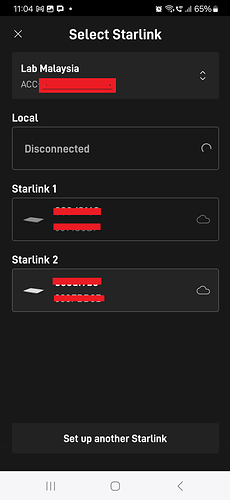
Step 1: Select Your Starlink Device
- Open the Starlink app
- Navigate to the device selection page
- Select the active Starlink unit
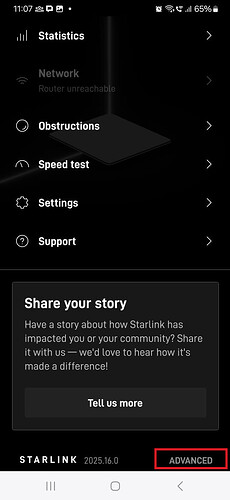
Step 2: Open Advanced Settings
- From the Starlink status page
- Scroll to the bottom
- Tap Advanced
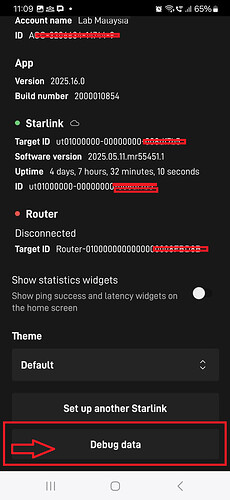
Step 3: Access Debug Data
- Scroll to the bottom of the Advanced page
- Tap Debug Data
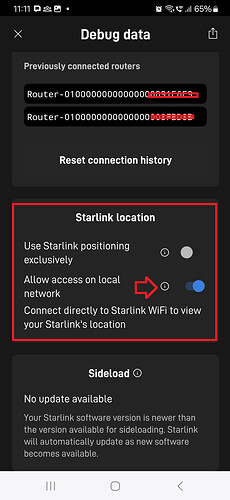
Step 4: Enable Location Access
Locate the section:
Starlink Location
Enable:
Allow access on local network
Notes
- This setting may be hidden under Support → Advanced → Debug Data depending on app version
- If the option is not visible:
- Ensure you are connected to the Starlink network
- Confirm the router is not in a restricted state (e.g., bypass mode limitations)
- After enabling:
- It may take a few minutes for the Peplink router to reflect the change
- A reboot of Starlink or the router can speed up detection
Important
- This setting is not required for normal operation
- Disabling it will not impact internet connectivity or performance
- The message is informational only
Summary
Enabling Starlink location access allows Peplink routers to retrieve GPS data from the Starlink system. While optional, it can enhance visibility and provide a fallback location source in certain deployments.
Need More Help with Advanced Features? Consider Becoming a Member
This article is provided as-is as a courtesy to our customers. MobileMustHave.com does not provide complimentary support for advanced features such as the one covered in this article. If you need more help with advanced functionality, like what is covered in this article, consider joining our Insider Explore Membership. Members receive access to our MMH Forums inside the Mobile Internet Resource Center and can ask questions and get direct assistance from our engineering staff on more complicated functionality and configurations. MMH Insider Explore Membership Benefits and purchase information is located here.
Thank you for being the best part of MobileMustHave.com!
Thank you for being the best part of MobileMustHave.com!
Was this article helpful?
That’s Great!
Thank you for your feedback
Sorry! We couldn't be helpful
Thank you for your feedback
Feedback sent
We appreciate your effort and will try to fix the article