TABLE OF CONTENTS
- Products Covered
- Summary
- Entering the APN
- (Optional) Bandwidth Allowance Monitoring
- Requesting Assistance
Products Covered
MobileMustHave Wireless direct data plans:
- P Unlimited Plan - Requested Swap by MobileMustHave
ONLY FOLLOW THIS ARTICLE IF YOUR PLAN PURCHASED EXACTLY MATCHES THE PLAN LISTED ABOVE
Summary
If we reached out to you, or if you recently purchased a P Unlimited plan from MobileMustHave, this guide will help you connect your router to the new service. Certain settings must be updated so your modem can negotiate properly with the network.
An APN functions like a username for your cellular connection. Updating it tells the carrier which network your device should register with. If the APN is not updated, the modem will not be able to connect.
To ensure your data plan activates and operates correctly, you must enter the updated APN settings.
Entering the APN
To enter the APN for your cellular data plan, you will first need to access your router’s local admin panel.
If you need help accessing it, please follow this guide: Accessing Peplink Admin Page
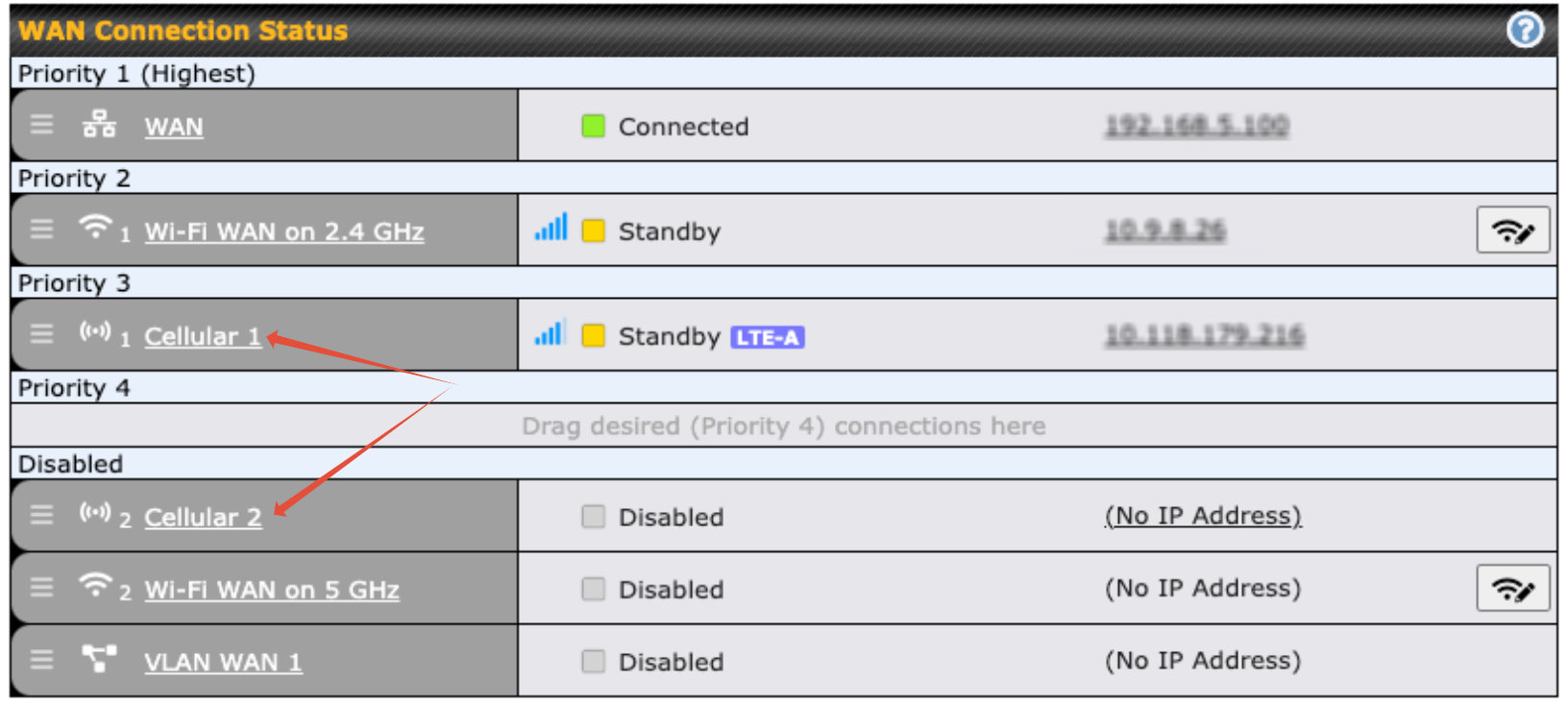
Once you have logged into the Peplink admin page, navigate to the Dashboard tab and click on the Cellular Details button for the modem you wish to apply this data plan to.
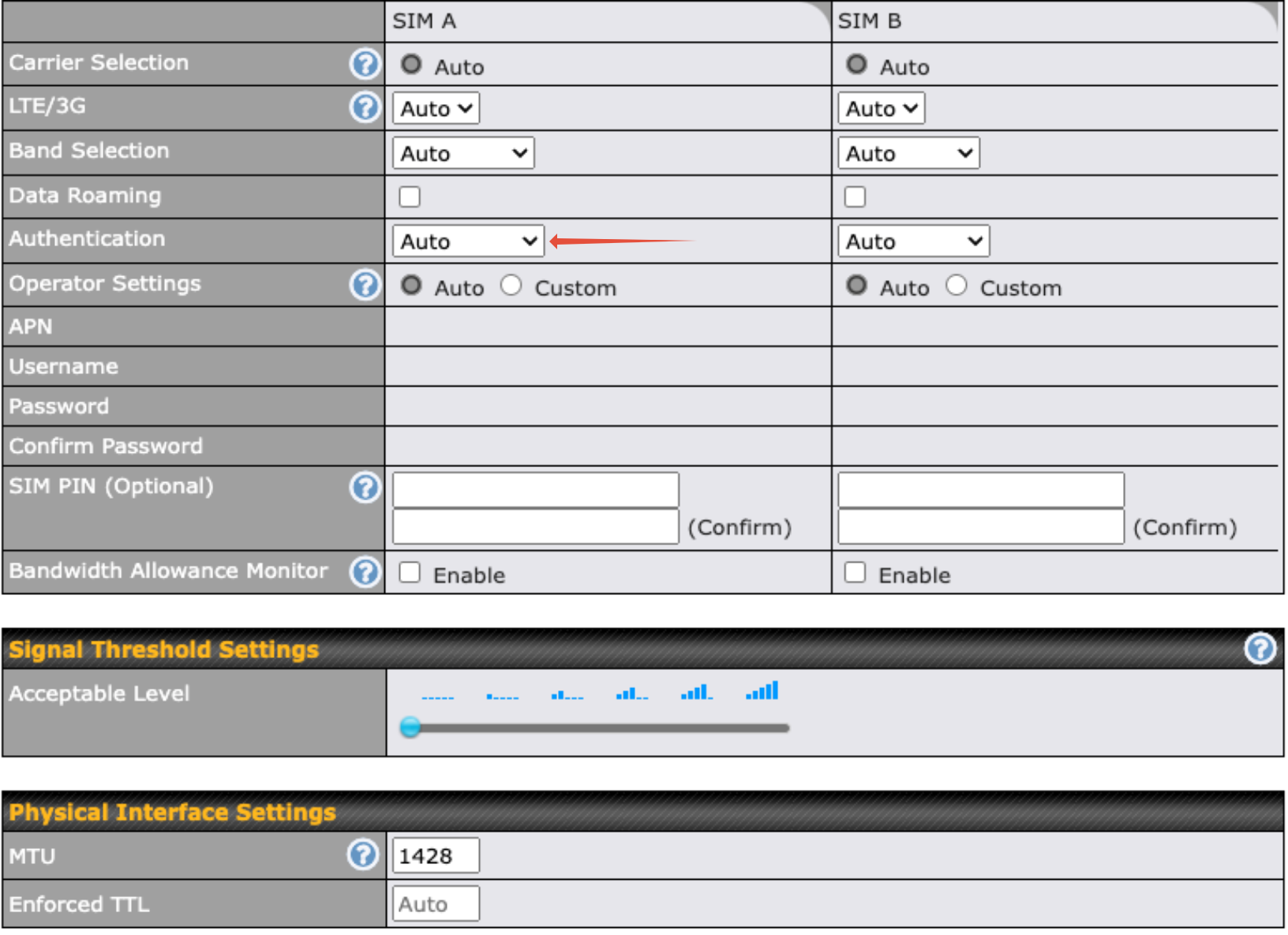
Scroll down to Cellular Settings, select Auto under Operator Settings. Make sure to select the proper SLOT A or B based on where your SIM card is located. Change the section corresponding to the correct SIM card to auto. Any custom APN setting from your previous plan must be cleared.
Save and Apply your changes at the bottom of the page. Your dashboard page should now refresh. Give your plan up to five-ten minutes to connect.
If it fails to connect after waiting for those 5-10 minutes, instead go back to those settings and select Custom APN. In the APN field, enter iot.t-mobile.com and save/apply.
Legacy P Unlimited plans (for purchases prior to March 2026)
Some legacy P Unlimited plans have a different APN. If the above auto settings do not get you connected, and you purchased your plan prior to March 2026, follow these instructions instead:
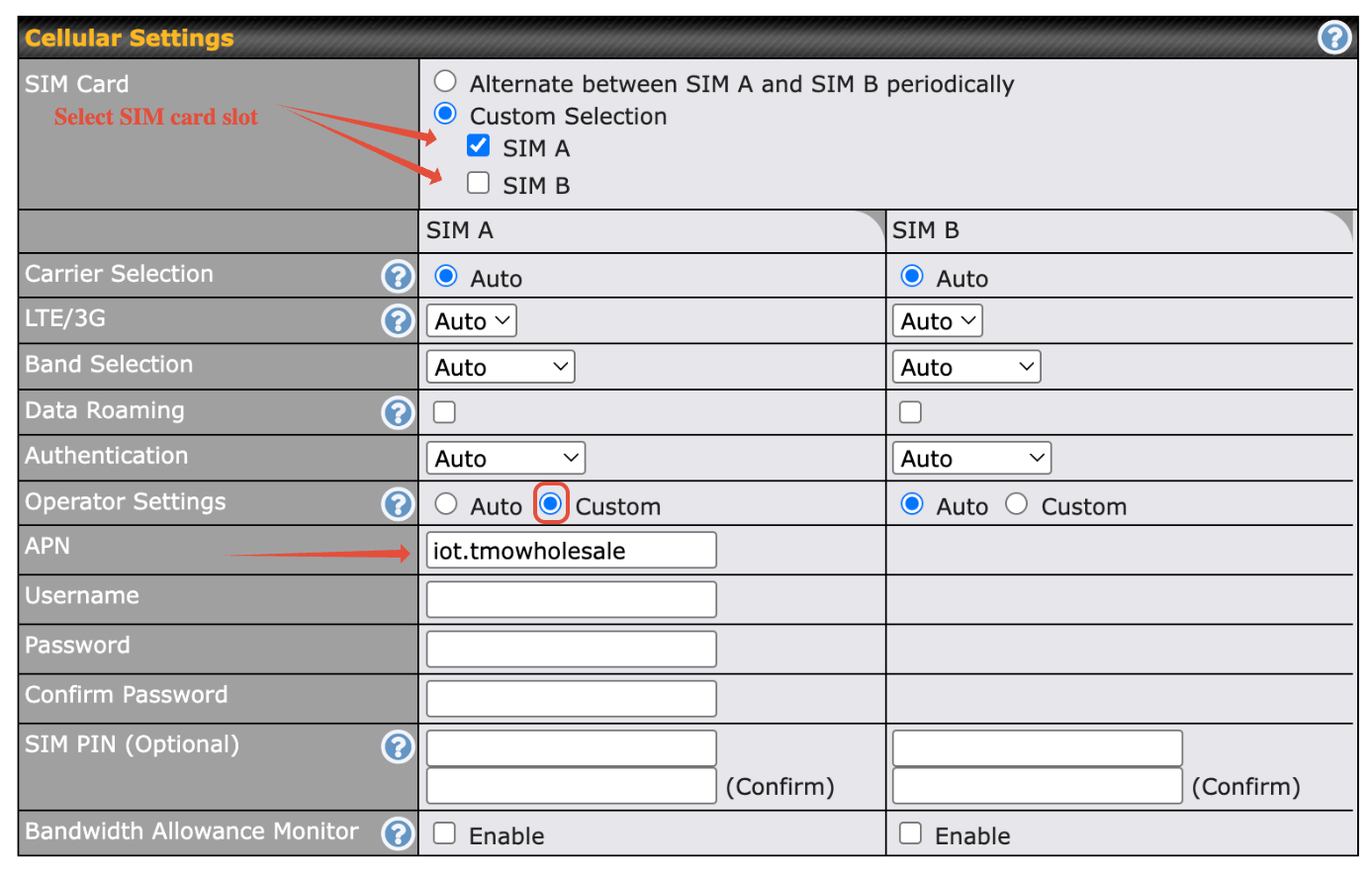
Set Operator Settings to Custom. This will allow you to manually enter the APN.
In the APN field, type the following: iot.tmowholesale
(Optional) Bandwidth Allowance Monitoring
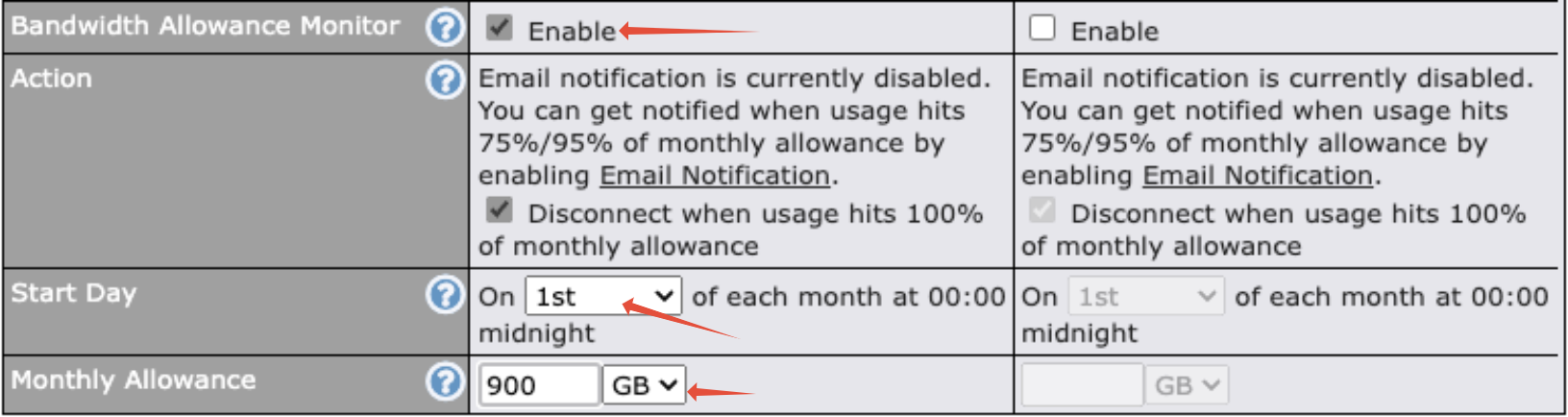
If you would like to enable automatic monitoring to prevent your plan from exceeding its monthly usage, you can set up Bandwidth Allowance Monitoring.
On the Cellular Details page, scroll down under the SIM slot that is currently checked/active to find this section.
This step is optional, but highly recommended if you want the router to automatically disable the connection before you reach your plan limit. You can follow the setup steps at this link: Monitoring Bandwidth Usage and Setting Individual Device Limits
Requesting Assistance
If you feel you’re not making progress, or if you encounter any issues during setup, our team is always here to help. You can reach us by submitting a ticket through the SUPPORT PORTAL or by emailing us directly at:
info@mobilemusthave.com
Thank you for being the best part of MobileMustHave.com!
Was this article helpful?
That’s Great!
Thank you for your feedback
Sorry! We couldn't be helpful
Thank you for your feedback
Feedback sent
We appreciate your effort and will try to fix the article