 Member Sponsored Content
The following article is brought to you by our premium members. These articles are co-authored with our education & action partner, Mobile Internet Resource Center (MIRC), which provides in-depth content and independent analysis on all things mobile internet.
Consider joining our membership for full access and to be part of the conversation in our support forums. Members also receive premium discounts on equipment, data plans as well as upgraded shipping! Learn more...
TABLE OF CONTENTS
- Products Covered
- Summary
- Entering the APN
- Settings for Non-Peplink routers
- (Optional) Bandwidth Allowance Monitoring
- Requesting Assistance
Products Covered
MobileMustHave Wireless direct data plans:
- RoamLink plans that utilize a physical SIM card or an eSIM
ONLY FOLLOW THIS ARTICLE IF YOUR PURCHASED PLAN EXACTLY MATCHES THE PLAN LISTED ABOVE
Summary
If you are interested in using your Peplink modem on an MMH Wireless RoamLink plan using a physical SIM or eSIM, some settings may need to be changed to have the modem negotiate with these networks. An APN is like a username and must be updated to tell the carrier which network you should be on. Failing to update this will result in you not being able to connect. You must update these APN settings for your data plan to connect and function properly.
Entering the APN
Navigate to the Dashboard tab and select the cellular details button of the modem you wish to add this data plan to.

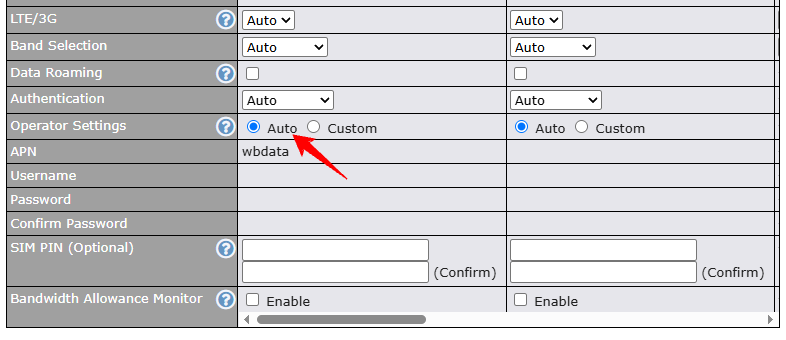
Scroll down to Cellular Settings, select Auto under Operator Settings. Make sure to select the proper SLOT A or B or BYO eSIM based on where your SIM card is located. Change the section corresponding to the correct SIM card to auto. Any custom APN setting from your previous plan must be cleared.
Settings for Non-Peplink routers
All routers are a little different. If you are using RoamLink in a non-Peplink router, you may be required to apply different settings. If your RoamLink is not connecting with default settings, please check the following in your router's admin settings:
APN: Should be set to wbdata (Peplink finds this automatically as shown in the picture above, but some routers might need this to be manually entered)
Data roaming: Toggled on (Not required for Peplink routers but may be required for others)
(Optional) Bandwidth Allowance Monitoring
This step is optional, but if you would also like to set up bandwidth monitoring to automatically shut off your plan before you go over your usage, you can follow the steps at this link. The data will reset on the 1st of each month, regardless of your billing date. We suggest setting a limit of slightly less than your data cap, so you know you have a little bit of emergency data left if you hit the limit without knowing.

Requesting Assistance
If you feel you are not getting anywhere or there is another issue, you can always reach out to our team directly by initiating a ticket here on the support portal or by emailing info@mobilemusthave.com
Thank you for being the best part of MobileMustHave.com!
Was this article helpful?
That’s Great!
Thank you for your feedback
Sorry! We couldn't be helpful
Thank you for your feedback
Feedback sent
We appreciate your effort and will try to fix the article