 Member Sponsored Content
The following article is brought to you by our premium members. These articles are co-authored with our education & action partner, Mobile Internet Resource Center (MIRC), who provides in-depth content and independent analysis on all things mobile internet.
Consider joining our membership for full access and to be part of the conversation in our support forums. Members also receive premium discounts on equipment, data plans as well as upgraded shipping! Learn more...
TABLE OF CONTENTS
- Table of Contents
- Products Covered
- Summary
- Pre-Configuration Steps (IMPORTANT)
- Wireless Mesh/Wireless Uplink
- Use Case
- Step-by-Step Setup (as shown in the video + common best practices)
- Requesting Assistance
Products Covered
Summary
In this article, we will show you how to enable Wireless Mesh, or Wireless Uplink, as it is also known. In order to enable Wireless mesh, you must first configure your access points using a wired uplink, which programs the devices. You must also setup your baseline wireless settings before attempting to enable Wireless Mesh. Instructional videos are below and must be followed in order for a successful implementation. ,
Pre-Configuration Steps (IMPORTANT)
There are 2 previous videos you must follow to baseline your Peplink mobile router and access points before you move on to thinking about Wireless Mesh. We have put together step-by-step articles along with videos to help you on your journey. Note that depending on your mobile router model, step 2 will vary. If you have a Max BR series modem included in our Essentials and Full-Timer Bundle select Step 2A below. If you have a Transit series modem included in our Speed Demon and Road Warrior/Ultimate Road Warrior bundle, select 2B.
- Step 1: Setting Up Your Peplink Wireless Correctly - Peplink WiFi Setup Best Practices
- Step 2A: Configuring Access Points on Peplinks without a Wireless AP Controller
- Please also follow Step 2B below in Step-by-Step setup
- Step 2B: Configuring Access Points on Peplinks WITH a Wireless AP Controller
Wireless Mesh/Wireless Uplink
Once you have followed the video above in its entirety, you can look at enabling Wireless Mesh/Upload, which will allow your secondary access points to function without an ethernet cable back to your primary Peplink mobile router. The technology is referred to as Wireless Mesh or Wireless Uplink. In order to configure this feature, follow the instructional video shown below.
While mesh is convenient when you can’t run cable, wired APs still perform better than wireless mesh — mesh shares wireless bandwidth for both backhaul and clients, which can reduce throughput and performance compared to wired links.
Use Case
Good for extending Wi-Fi coverage when you can’t run an Ethernet cable to every location — e.g., remote rooms, long corridors, or different floors.
Step-by-Step Setup (as shown in the video + common best practices)
Ensure correct hardware & firmware of devices, and ensure they are powered on, connected to each other
On the wired (main) Router
Log in to the admin interface (192.168.50.1) and click the AP tab at the top of the dashboard.
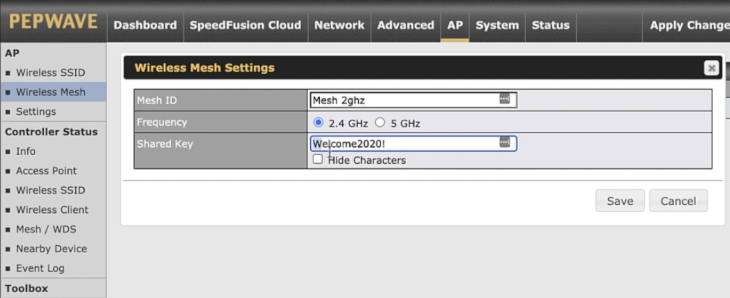
Navigate to “Wireless Mesh” (or “Mesh / WDS”) settings in the left sub menu.
Create a new Mesh Profile: Click ADD, specify a MeshID, choose the frequency (5 GHz is usually preferred for the backhaul mesh link), and set a shared key/password.
Save the profile (but no need to Apply Changes yet; this can wait).
Navigate to "Settings" under Wireless Mesh and open the Default AP profile.
Under Mesh, toggle from Disabled to the Mesh network you created previously, and click Save at the bottom of the page. You can now APPLY CHANGES.
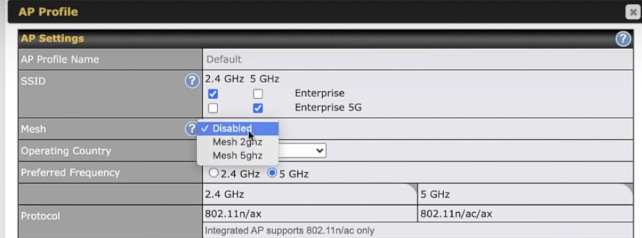
ONCE CHANGES ARE APPLIED, DO NOT UNPLUG YOUR DEVICES. WAIT 10 MINUTES FOR SYSTEMS TO SYNC.STEP 2B: If you are setting up Wireless Mesh WITHOUT the AP Controller, there is an additional step in the configuration process and must be performed on the AP admin panel dashboard.
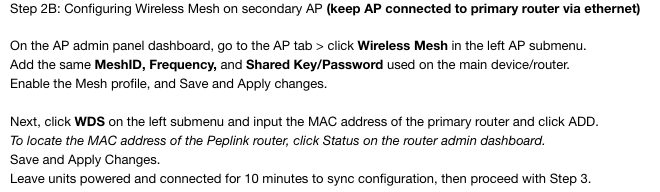
After waiting 10 minutes, you can unplug your AP device and move it to another location. Once it is plugged back in, allow it to boot back up. Confirm that the WiFi LED is flashing/blinking green.
Finalize and verify the mesh connection
Once settings are applied, the external AP should wirelessly link (“mesh uplink”) to the wired AP — forming the mesh backbone once it has a chance to reboot in a new location.
Return to the administrator dashboard of the router and confirm that the mesh connection has been established:
Navigate to the AP tab, under Controller Status in the left submenu, click Access Point.
From this page, you will want to ensure that you see your AP listed under Managed APs.
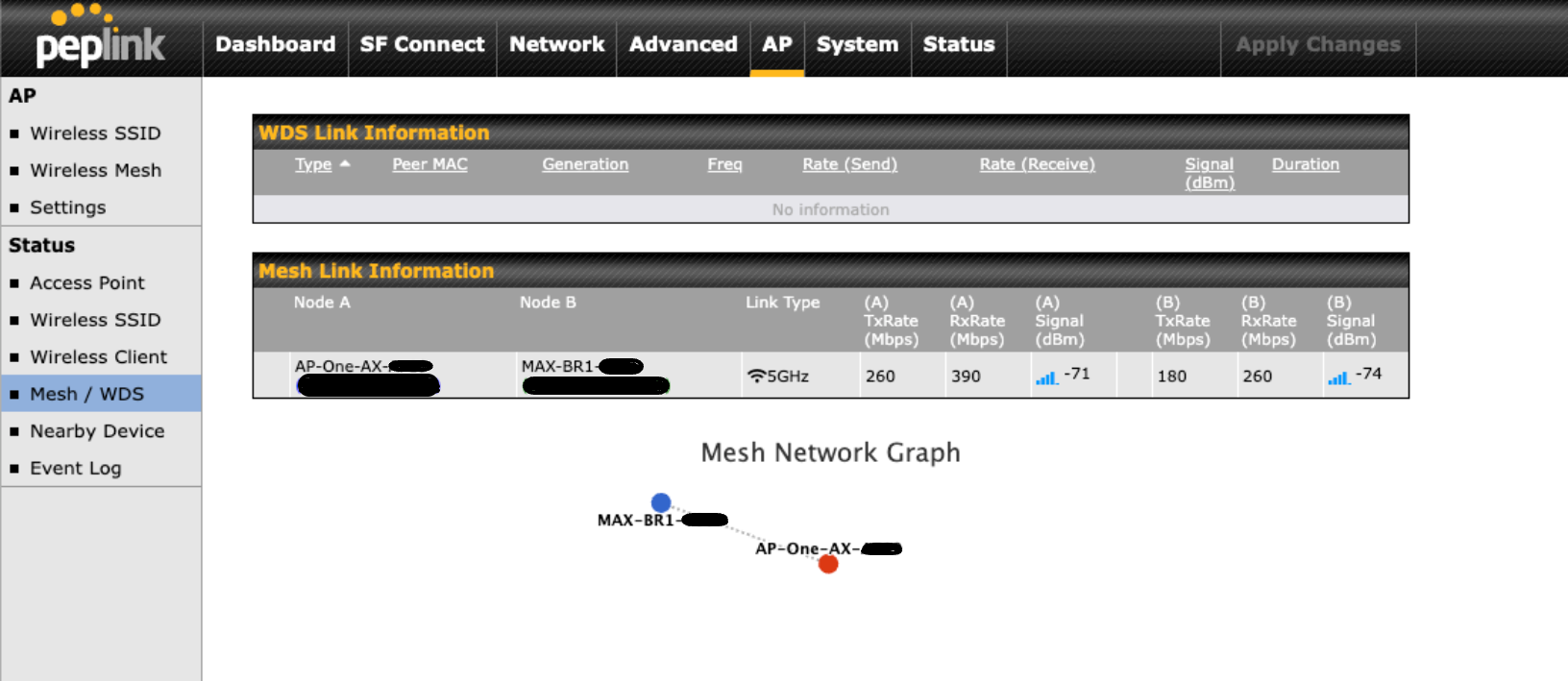
If your Peplink router does not have the built-in controller, you will not see it listed under Managed APs. Click the Mesh / WDS tab in the left submenu to view a diagram and confirm the connection.
- Placement and performance tips
For best reliability, the external AP should be placed where it still gets a strong signal from the main wired AP — ideally between the wired AP and the area needing coverage (rather than at the far edge of the coverage zone). This helps ensure a stable mesh “backhaul.”
Requesting Assistance
If you feel you are not getting anywhere or there is another issue, you can always reach out to our team directly by initiating a ticket here on the support portal or by emailing info@mobilemusthave.com
Thank you for being the best part of MobileMustHave.com!
Was this article helpful?
That’s Great!
Thank you for your feedback
Sorry! We couldn't be helpful
Thank you for your feedback
Feedback sent
We appreciate your effort and will try to fix the article