 Member Sponsored Content
The following article is brought to you by our premium members. These articles are co-authored with our education & action partner, Mobile Internet Resource Center (MIRC), who provides in-depth content and independent analysis on all things mobile internet.
Consider joining our membership for full access and to be part of the conversation in our support forums. Members also receive premium discounts on equipment, data plans as well as upgraded shipping! Learn more...
Table of Contents
- Products Covered
- Summary
- Band Locking Summary video
- Band Locking Process
- Before You Leave Camp - Reset Your Band Locking to AUTO
- Need More Help? Consider Becoming a Member
Products Covered
- All PepLink Max Series Mobile Routers
- PepLink Balance Series Mobile routers (screenshots on Balance will vary, but the concept is the same)
Summary
In this article, we will discuss the basics of using 'band selection' or 'band locking' functionality to force your modem to connect to a particular band or channel on the cellular networks. Certain bands offer higher capacity or longer range based on the frequencies utilized. By manually selecting bands, you may improve your data connection speeds (or make them worse, depending on the bands selected). This article and associated video will describe how to use band locking.
Band Locking Summary Video
In the video below, we provide a summary overview of band locking and how to use the function.
Band Locking Process
Each cellular carrier uses different bands approved for its individual use by the FCC. As you become familiar with your carrier, you may find that certain bands at certain locations perform better than others. If you have multiple carriers or a multi-modem device such as a PepLink Max Transit DUO, you will need to perform band locking on each individual modem and speed test each modem individually to test your performance. Make sure to disable any modems not being tested to ensure your traffic is routing out the device you are testing. Get yourself a pen and paper and document the results from the testing steps below.
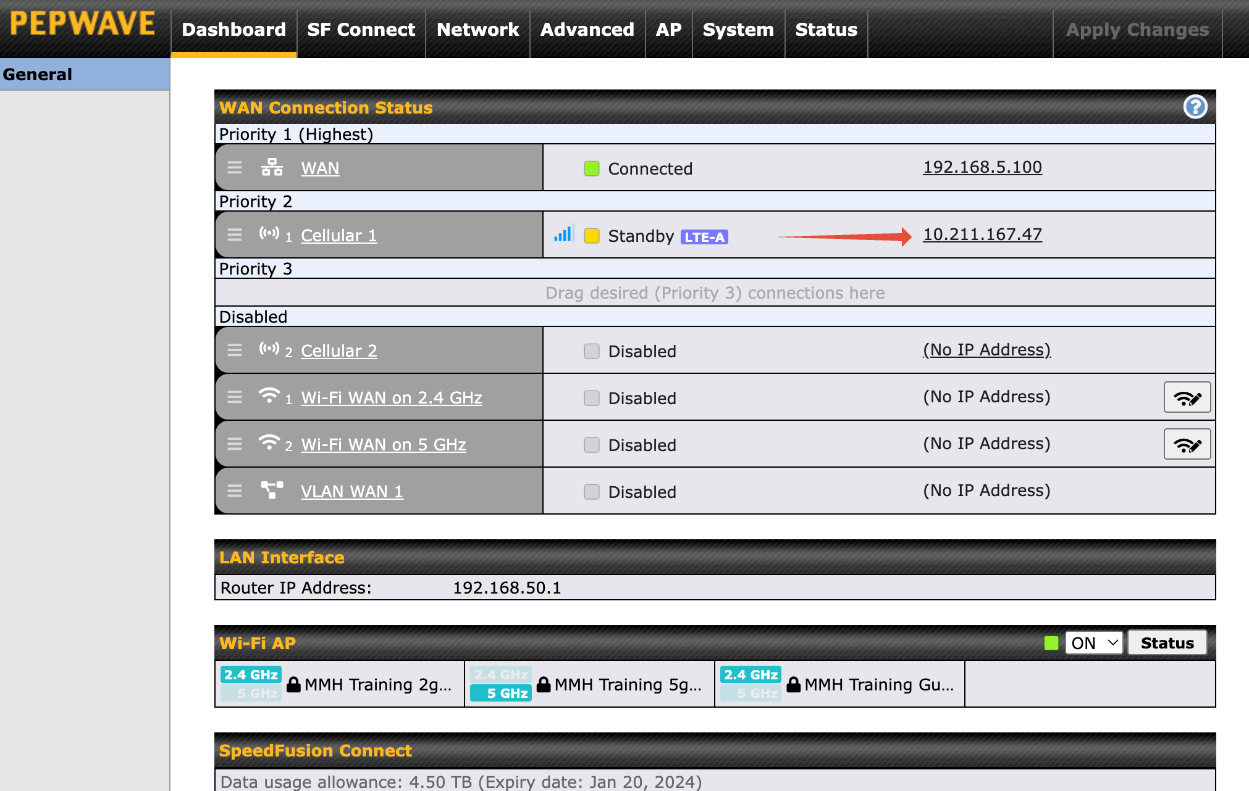
Step 1: To begin testing, select the cellular details page of the modem in question, as shown in the screenshot below. The cellular details page is located on the dashboard of your Peplink administration console, by clicking the IP address next to the connection. Please note that the screenshots below are from firmware version 8.5.1. Ensure that your device is updated to the latest version to follow along seamlessly.
For a guide to accessing your admin console consult our guide. https://support.mobilemusthave.com/support/solutions/articles/67000671993-accessing-pepwave-admin-page
Step 2: Once you have opened the cellular details page, note the band you are currently connected to. See the screenshot below. Note, you may be connected to multiple bands; for this example, we will focus on the primary band listed first. In the example screenshot below, we are connected to Band 12.

Step 3: Now that we know we are connected to Band 12, we will run a baseline speed test. You can run a speed test by visiting http://speedtest.net. Note that you must complete each speed test using the same server for optimal results. See speed test results below.

Step 4: At this point, you have the option to disable "all" bands except the one you wish to test. However, we have found that it is faster to simply disable the band you are connected to and let the modem automatically select the next band available from the carrier. Under the cellular details page, scroll down to band selection and select Custom. This will display the bands available. See screenshots below.


Wait for the modem to reconnect. This may take up to 1 minute. If the modem does not reconnect, then there are no other available bands in your area, and you should re-enable any disabled bands. Otherwise, move on to next steps.
Step 5: Now that the modem has reconnected after disabling the previously connected band, repeat Step 1 to determine which band you are now connected to. In our case, we are now connected to Band 66. See screenshot below.

Repeat Steps 3 & 4 for each band available, testing which band is the fastest. In our example, Band 12 was 4mbps download speed, while Band 66 was only 1.2mbps download. We continued to disable active bands and isolated Band 2 as having 16mbps download, which was the fastest in this example location. Note that results will vary based on location, time of day, and can even be impacted by the weather. If you are experiencing slowdowns, we recommend re-enabling all bands and repeating the steps in this article beginning from Step 1.
Before You Leave Camp - Reset Your Band Locking to AUTO
It is extremely important that before you leave camp that you re-enable the bands that were disabled and set your modem to AUTO before travel. This will ensure your modem has the highest chance of remaining connected while you travel and connecting at your new location. See screenshot below.

Make sure to scroll down and hit Save/Apply.
Need More Help with Advanced Features? Consider Becoming a Member
This article is provided as-is as a courtesy to our customers. MobileMustHave.com does not provide complimentary support for advanced features such as the one covered in this article. If you need more help with advanced functionality, like what is covered in this article, consider joining our Insider Explore Membership. Members receive access to our MMH Forums inside the Mobile Internet Resource Center and can ask questions and get direct assistance from our engineering staff on more complicated functionality and configurations. MMH Insider Explore Membership Benefits and purchase information is located here.
Thank you for being the best part of MobileMustHave.com!
Was this article helpful?
That’s Great!
Thank you for your feedback
Sorry! We couldn't be helpful
Thank you for your feedback
Feedback sent
We appreciate your effort and will try to fix the article