 Member Sponsored Content
The following article is brought to you by our premium members. These articles are co-authored with our education & action partner, Mobile Internet Resource Center (MIRC), who provides in-depth content and independent analysis on all things mobile internet.
Consider joining our membership for full access and to be part of the conversation in our support forums. Members also receive premium discounts on equipment, data plans as well as upgraded shipping! Learn more...
TABLE OF CONTENTS
- Products Covered
- Summary
- WiFi Best Practices Setup Instructional Video
- WiFi Best Practices Step-By-Step Instructions
- Requesting Assistance
Products Covered
Summary
In this knowledge base article and accompanying video, we walk through how to set up local Wi-Fi on Peplink MAX Series mobile routers for maximum device compatibility. Although Peplink routers offer many configuration options depending on your deployment, this guide focuses on a reliable, best-practice setup suitable for most users.
We explain the differences between 2.4 GHz and 5 GHz Wi-Fi, when to use each band, and how to configure them independently on your Peplink router. We also cover recommended Wi-Fi encryption settings, including which options provide the best balance of security and broad device compatibility. Additional tips and considerations are included to help ensure optimal performance across all connected devices.
WiFi Best Practices Setup Instructional Video
WiFi Best Practices Step-By-Step Instructions:
1. Log Into the Peplink Web Admin
Connect to the Peplink router via LAN port or Wi-Fi.
Open a browser and go to:
http://192.168.50.1Enter your admin username and password.
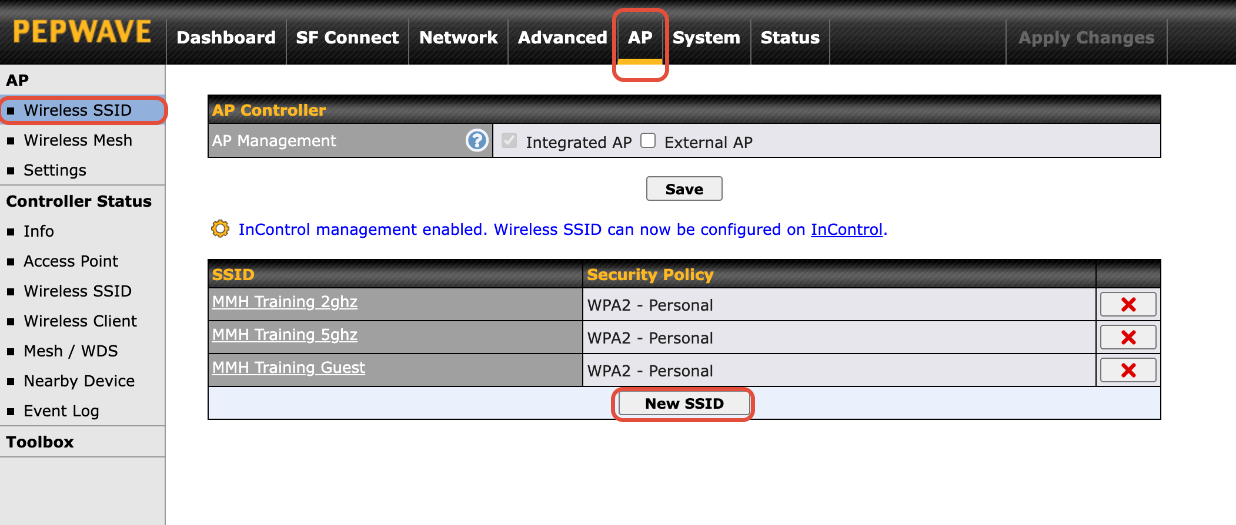
2. Navigate to the Wireless AP Tab & Create your SSID(s)
- In the top navigation menu, click AP.
- Under the WirelessSSID section, click New SSID (NOTE: Do not edit an existing SSID, i.e. Peplink_XXXX, always create NEW).
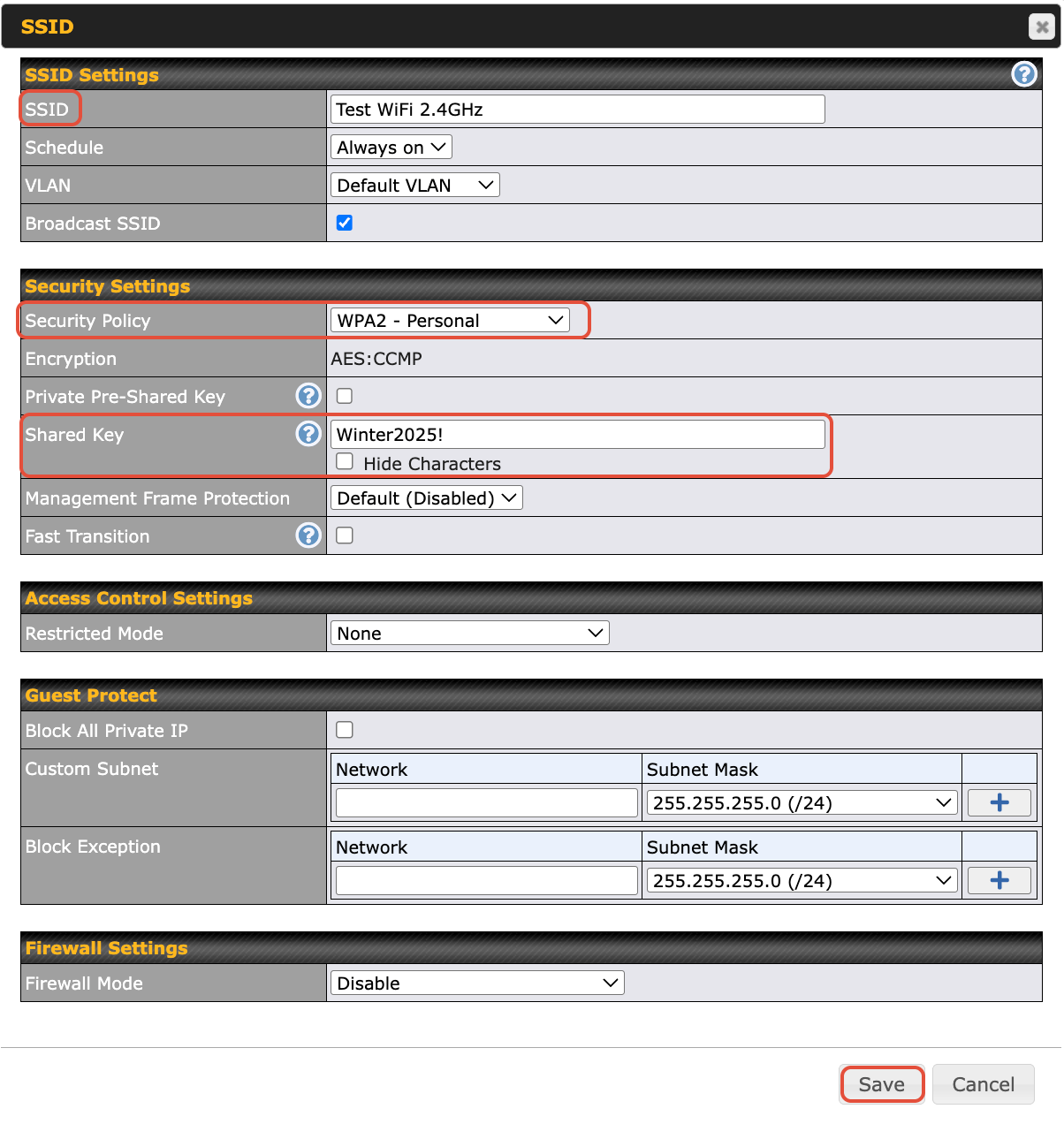
3. After clicking New SSID, configure 2.4GHz and 5GHz SSIDs:
SSID
Security Policy: WPA2 - Personal recommended, others can cause issues with security connections.
Shared Key/Password: Use a strong passphrase
Click Save at the bottom of the page.
Repeat steps for 5GHz network.
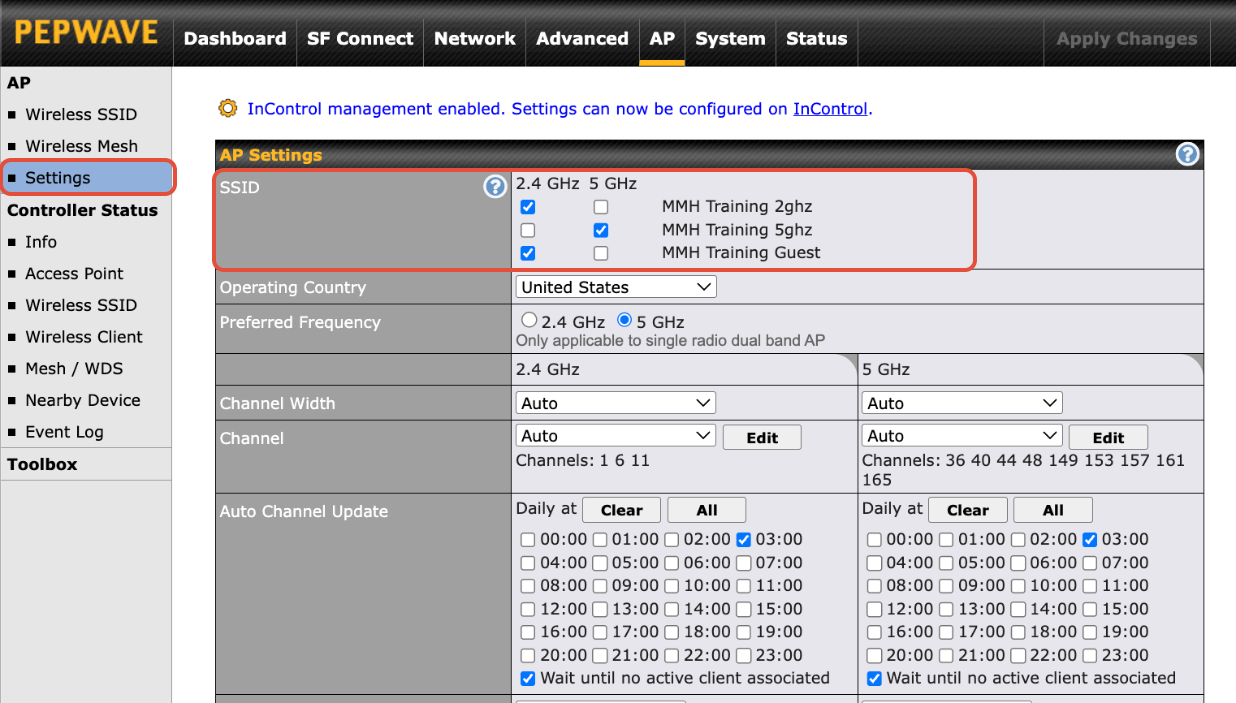
3. Choose the Correct Frequency Band (2.4 GHz vs 5 GHz)
- Navigate to Settings tab in left submenu
- From this screen,
- Uncheck the 5Ghz network from the 2GHZ SSID
- Uncheck the 2Ghz network from the 5GHZ SSID
- Leave everything else default, hit save
4. Apply Changes at the top of your dashboard.
Requesting Assistance
If you feel you are not getting anywhere or there is another issue, you can always reach out to our team directly by initiating a ticket here on the support portal or by emailing info@mobilemusthave.com
Thank you for being the best part of MobileMustHave.com!
Was this article helpful?
That’s Great!
Thank you for your feedback
Sorry! We couldn't be helpful
Thank you for your feedback
Feedback sent
We appreciate your effort and will try to fix the article