Peplink Speed Fusion Connect Relay
Member Sponsored Content
The following article is brought to you by our premium members. These articles are co-authored with our education & action partner, Mobile Internet Resource Center (MIRC), who provides in-depth content and independent analysis on all things mobile internet.
Consider joining our membership for full access and to be part of the conversation in our support forums. Members also receive premium discounts on equipment, data plans as well as upgraded shipping! Learn more...
Education & Action Explained
This article is divided into two main sections, Education & Action. The Action Section refers to content with step-by-step how-to articles on this topic. The Education section links to related content and deeper dive information from our friends at the Mobile Internet Resource Center. Enjoy, and your feedback is always welcome!
TABLE OF CONTENTS
- Products Covered
- Article Summary
- Before Getting Started
- Education
- Action
- Configuring Relay Mode through another Peplink router
- Need More Help? Consider Joining Our Membership & Support our Community
Products Covered
Article Summary
In this article, we review the setup guide for the Speed Fusion Connect Relay. The SFC Relay is designed to be left at a home base and create an internet access location. Another Peplink device on the same account using SpeedFusion Connect can then use the Relay via SpeedFusion to connect to the internet. This creates the appearance that all traffic from the remote Peplink device is still coming from the physical address of the relay.
For a real-world example: You have a home base in Dallas, Texas, and you have installed a relay connected to your home relay. You travel in your RV and also have a Peplink in your RV. If both devices are connected, when the internet is used in the RV, the internet will see all your traffic coming from your Dallas, Texas, internet connection. This will be true no matter where you go in your RV with your Peplink.
Below we have a setup guide and a few different configurations to best manage your internet traffic when setting up this SFC Relay.
NOTE: You may also set up a SF relay using a secondary Peplink router. If this is the set
Before Getting Started
Disclaimer
This guide is assuming you have basic knowledge of InControl and how to navigate a Peplink device. This is a not a complex setup process, but does require a few steps to get each device connected correctly.
Education
Education Topic 1
The SpeedFusion Connect (SFC) Relay is a simple product to use and get setup for most. However, the technology does lead to more advanced questions and workflows that we go in detail with for members. If you want to learn more about advanced traffic routing, changing your sharing keys, and more, this is place to go.
Member Content Available

Our complete guide on this subject is available to our members at:

SpeedFusion Connect Relay Guide

 Some content is provided free of charge, members have full access as well as access to our pre-recorded webinars on this topic. Learn More About Memberships...
Additional Content & Links from Mobile Internet Resource Center
- SpeedFusion Connect Guide & Member Webinar
- Peplink Multi-WAN Overview Guide
- Peplink SpeedFusion Cloud Relay Guide
- Combining Peplink and Starlink Guide & Member Webinar
- Peplink Virtual WAN Guide
Action
Overview Video
Setup Topic 2
Now that we have the education section behind us let's begin with how to set up SpeedFusion Connect Relay.
If you skipped the information above, we highly recommend you go back and read it to save yourself time and to prevent future questions not covered by complimentary support.Step 1: Setup of Hardware
There are two ways to do this step.
Option 1: Use InControl (recommended)
Option 2: Hardwire (setup guide coming soon)
Option 1 with InControl:
Step 1: Plugging the Relay
- Plug in Relay to power and a LAN port of the home base modem.
- Log into InControl and Add a new device
- Enter Serial number of the SFC Relay. Hit Next
- Enter a Name of the device (so you know what it is on the dashboard) Hit Confirm.
- Device might take a few mins to come online. Mine took about 5 mins to show an active status in InControl.
Step 2: Get Relay's sharing code
One the device comes online we need to remote in and get its sharing code.
- In InControl, click on the newly added Relay
- On the device's dashboard, click on Support and then click Web Admin.
- We then will go to the SFC Relay Tab
- Delete the tunnel already established, if necessary, by clicking the red X. Create a new tunnel, selecting the location from the drop-down box closest to your Relay's physical location.
- Save and apply.
- Copy the Relay Sharing Code.
Step 3: Connect the Relay to your Primary Peplink device
This step is connecting the Relay device to your primary peplink device so you can send traffic to the relay and that local connection.
- In InControl, off the dashboard, click on the Peplink device you want to connect to the Relay. Click on the settings tab on the device page, then web admin. Alternatively, you can connect locally to your router using the steps outlined in this article: Accessing Peplink Admin Page
- Once you are in the Peplink's local console, click on the SFC Connect tab.
- Click on the Client Mode (Outbound) Option
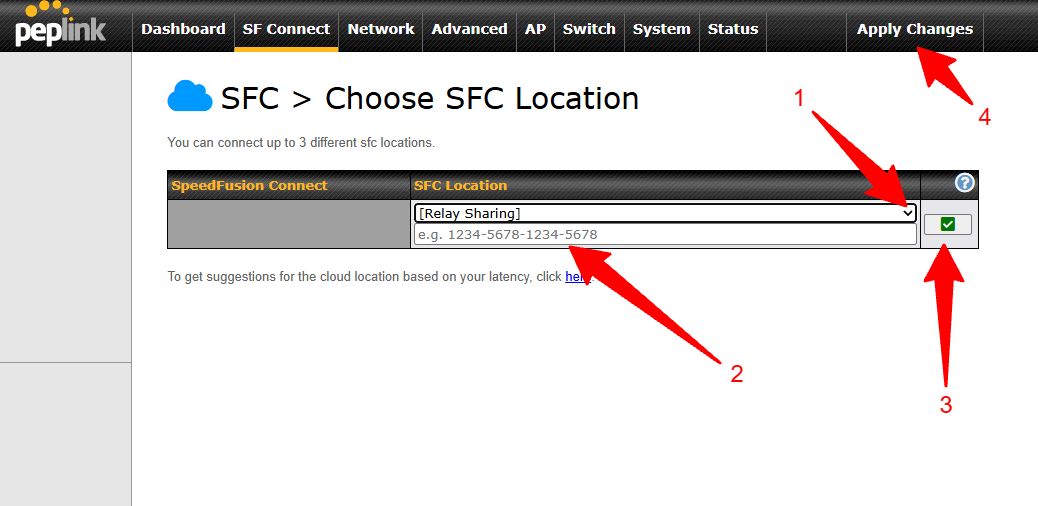
- And click the Plus button
- A settings page will open. The default selection for SFC Connect Location is Automatic. Click on Automatic and select {Relay Sharing].
- Enter the Sharing Code we copied from the Relay in the field that displays blow the Relay Sharing selection. The default options are ok. Click save at the bottom.
- Apply changes
See below for admin panel steps screenshots:
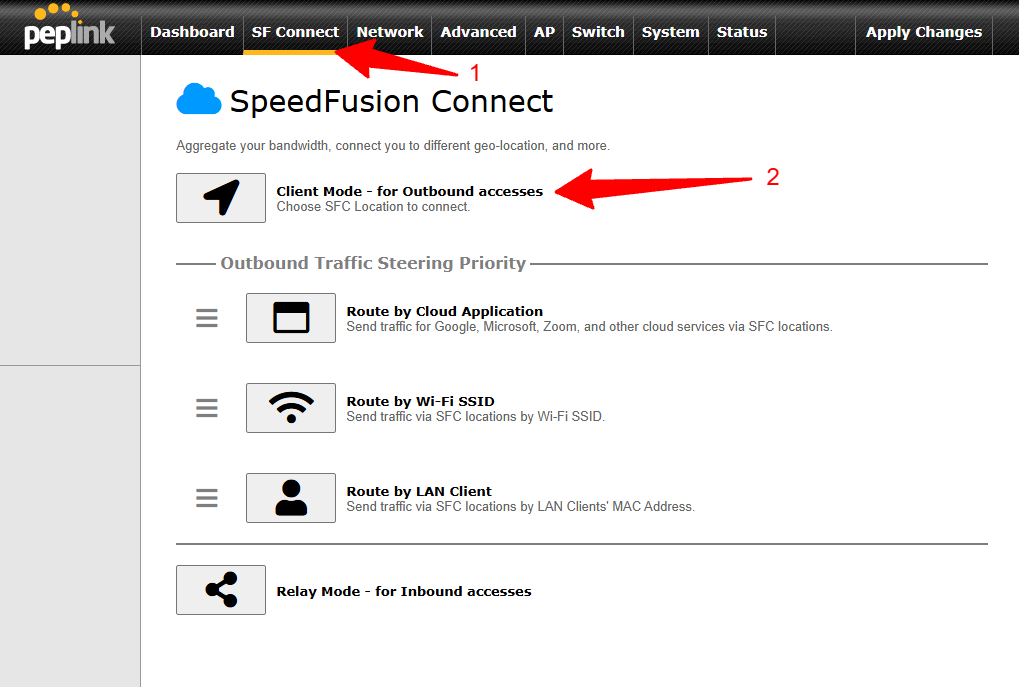
In the Client Mode tab:
Step 4: Route traffic to the Relay
Now that you have the two devices connected, you need tell your primary device how you want traffic to be routed. Do you want all traffic being routed? Do you want just some devices to use this Relay for location? Do you want just streaming devices to use the relay for TV channels?
Before moving forward, think about what you want to do. Then move forward based on that goal. I will outline two ways below, but there are many ways this can be done. These are not the only two ways. If you really want to dive into this the MIRC guide referenced at the top of this page has a lot more info!
- Routing Traffic from a designated WiFi
- Routing Traffic from a device
Option 1: Routing Traffic from a designated WiFi (SSID)
This option allows you to create a new WiFi network and any device connected to this new wifi, will go thru the Relay. This is helpful if you want to move device on and off this network depending on how you need them to work.
- On the primary router, under the SFC ConnectTab, click on "Route by Wi-Fi SSID"
- Select which SSID(wifi name) you want this network to be based off of. You can change the name of the SSID created when using SFC Connect.

- Click on save, and then apply changes.
Option 2: Routing Traffic for specific devices
This option is great if you just plan on using the relay for one a few devices and they will always work the same way. A good example of this is a streaming device you want local channels on, or a work computer you always want to appear in one place.
- On the primary router, under the SFC Connect Tab, click on "Route by LAN Client"
- On the drop-down, select which device you want to be routed thru the relay.
Important Note: If you are troubleshooting down the road, this option can make it harder.  Having a device with a rule like this to route differently is easy to forget about and create unnecessary problems with troubleshooting. keep that in mind.

I also do not suggest doing this with devices that change MAC address.  An iPhone is a good example as they change their MAC address for security reasons when on some wifi. This will prevent this rule from running consistently.
Configuring Relay Mode through another Peplink router
If you are configuring relay mode via another Peplink router instead of the Relay device, follow this section to learn how.
Power on your Peplink router that is being used as the relay. You will need to connect this router to a home router or another source of internet you are happy using for the relay. Commonly, this would be done using this router's WAN port. So, it would be Home router LAN -> WAN Relay Peplink router.
Access the admin panel of your relay Peplink. If you do not know how, please follow this guide: Accessing Peplink Admin Page
When you log in, make sure your WAN connection is enabled on your dashboard (home screen after logging in).
To configure the relay mode, click on the SF Connect tab at the top, then click on the Relay Mode - for Inbound accesses subtab:
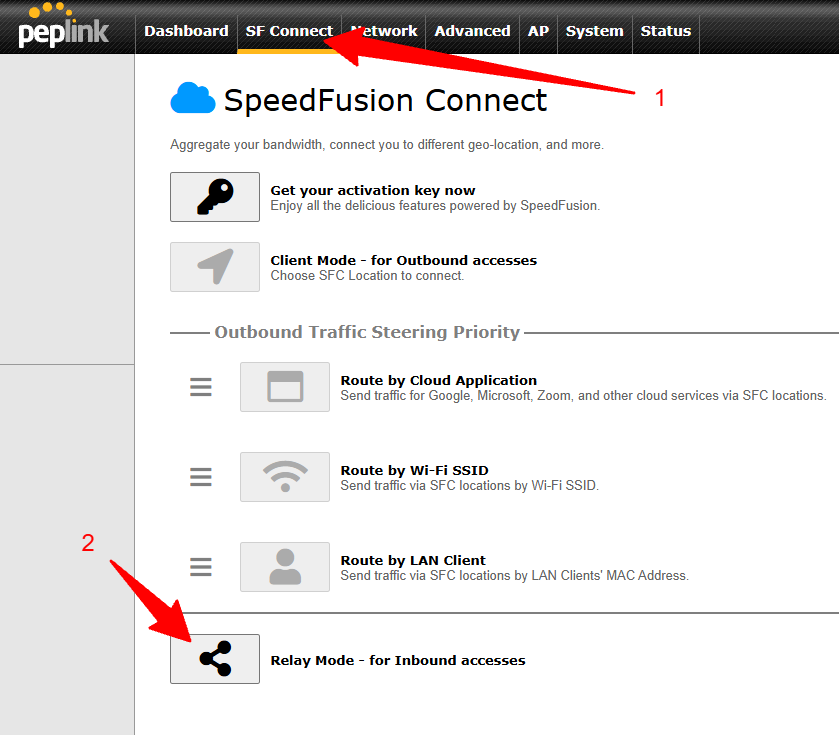
In the next screen follow these steps:
- Select the SFC Location closest to where this relay router is physically deployed.
- Click the check mark
- Click apply changes
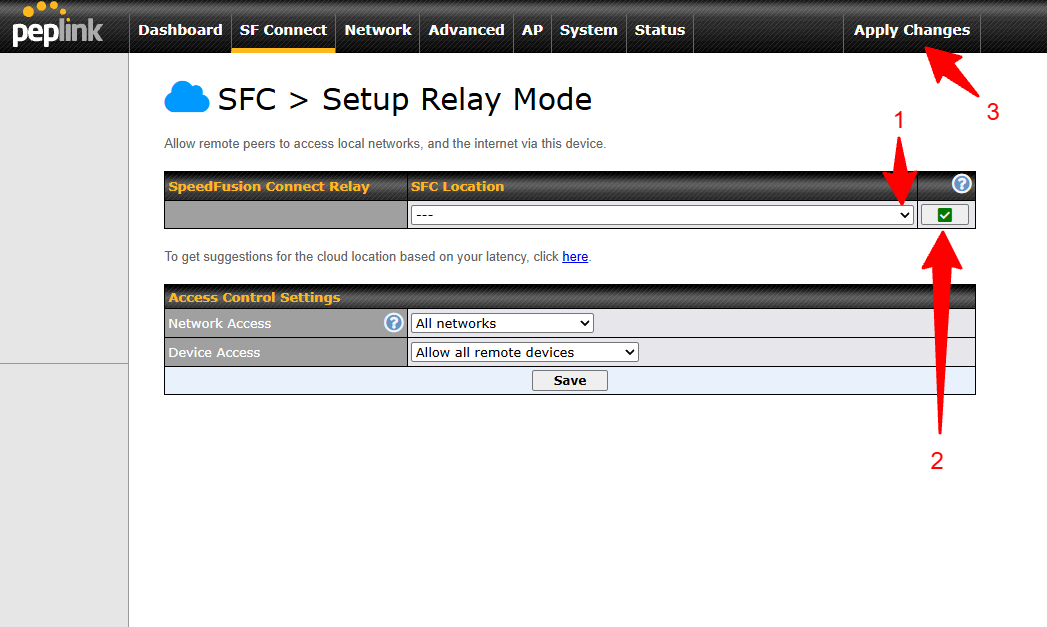
A code will appear to the left of where you clicked the check mark. Copy that code. You will need it when configuring your OTHER Peplink router that is using this relay.
From here, follow the steps outlined in Step 3: Connect the Relay to your Primary Peplink device earlier in this article. From here, the configuration will be the same for both relay methods.
Need More Help? Consider Joining Our Membership & Support our Community
MMH Explore members can join the conversation and gain access to our support forums located within the Mobile Internet Resource Center. Senior members of MobileMustHave's Technical Staff moderate the MobileMustHave.com Support Forum and tackle more advanced configurations, troubleshooting, and general advice.
In addition, MobileMustHave hosts monthly live webinars on advanced topics. These sessions cover everything from the basics to the more nuanced areas of configurations on Peplink devices. Past Webinars have included deep dives into; SpeedFusion Connect Connect (Cloud), Outbound Policies, VLANs, and much more.
MobileMustHave and the Mobile Internet Resource Center have staff with decades of IT experience and are there to help you when you get stuck!
Thank you for being the best part of MobileMustHave.com!
Was this article helpful?
That’s Great!
Thank you for your feedback
Sorry! We couldn't be helpful
Thank you for your feedback
Feedback sent
We appreciate your effort and will try to fix the article