 Member Sponsored Content
The following article is brought to you by our premium members. These articles are co-authored with our education & action partner, Mobile Internet Resource Center (MIRC), who provides in-depth content and independent analysis on all things mobile internet.
Consider joining our membership for full access and to be part of the conversation in our support forums. Members also receive premium discounts on equipment, data plans as well as upgraded shipping! Learn more...
Education & Action Explained
This article is divided into two main sections, Education &. The Action Section refers to content with step-by-step how-to articles on this topic. The Education section links to related content and deeper dive information from our friends at the Mobile Internet Resource Center. Enjoy and your feedback is always welcome!
TABLE OF CONTENTS
Overview
Being able to schedule times where your connections are active can be very useful depending on your needs. Let’s say you want to be connected to your cellular network during working hours but after work switch over to a Wi-Fi Network. You need to create a “schedule” inside the Peplink admin software. This article will explain how to do this.
Action
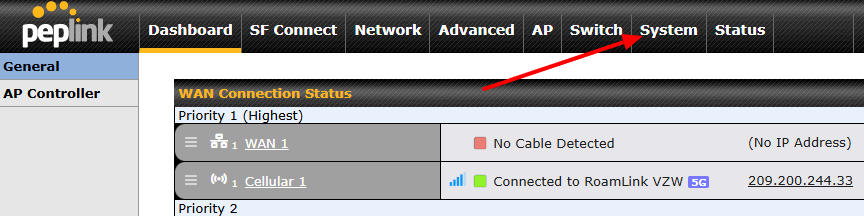
1. After logging into the admin portal, click on the System tab
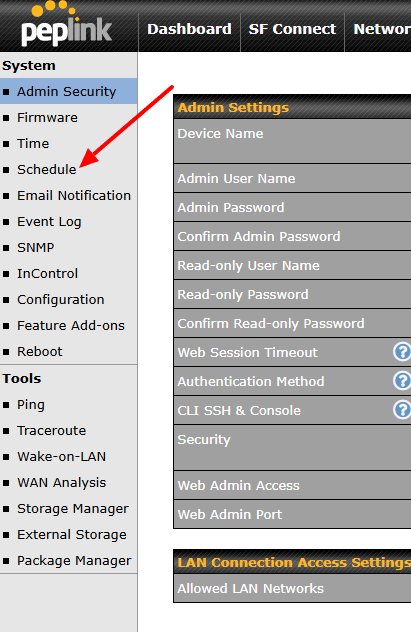
2. From the left panel options, click on “Schedule”
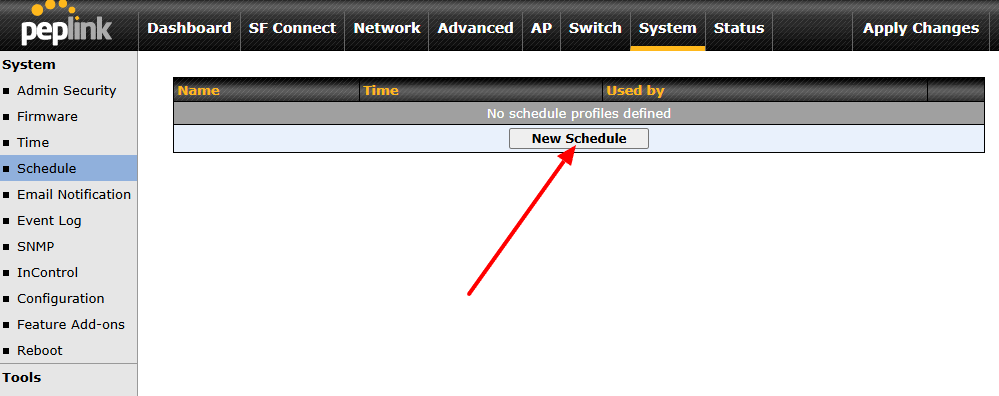
3. Select “New Schedule” option
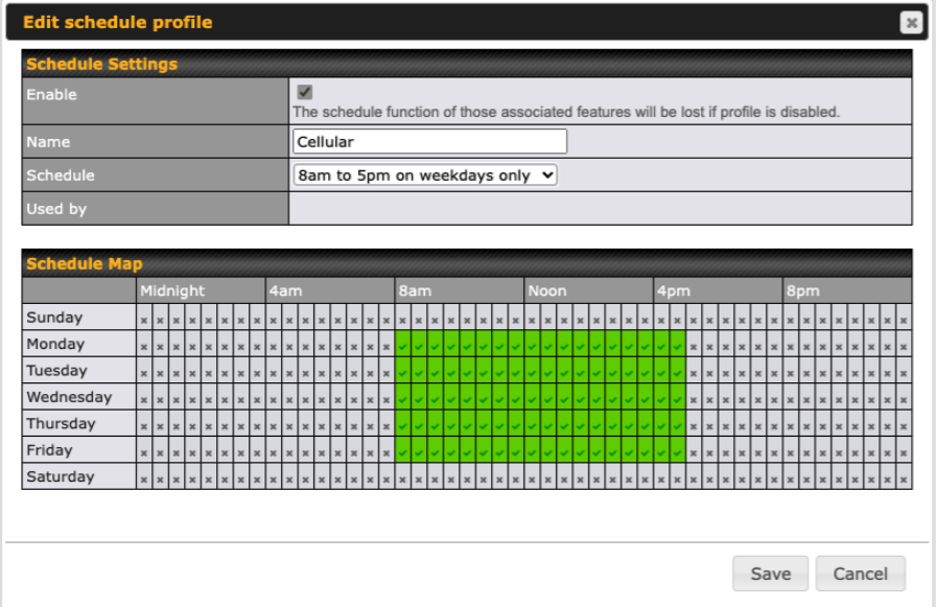
4. Here you will be able to set your schedule depending on your needs. It even has a standard work week option as indicated in the photo below. Make sure to click "Save"
5. Once you have set up the schedule the way you desire, navigate to the AP tab where you can select the SSID (WiFi network) you wish to set a schedule for.
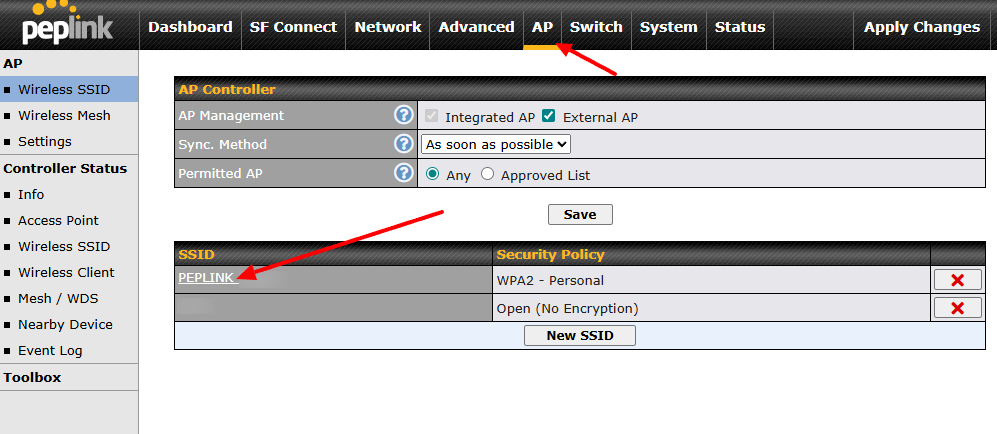
6. From the next screen, simply select your new schedule from the dropdown box.
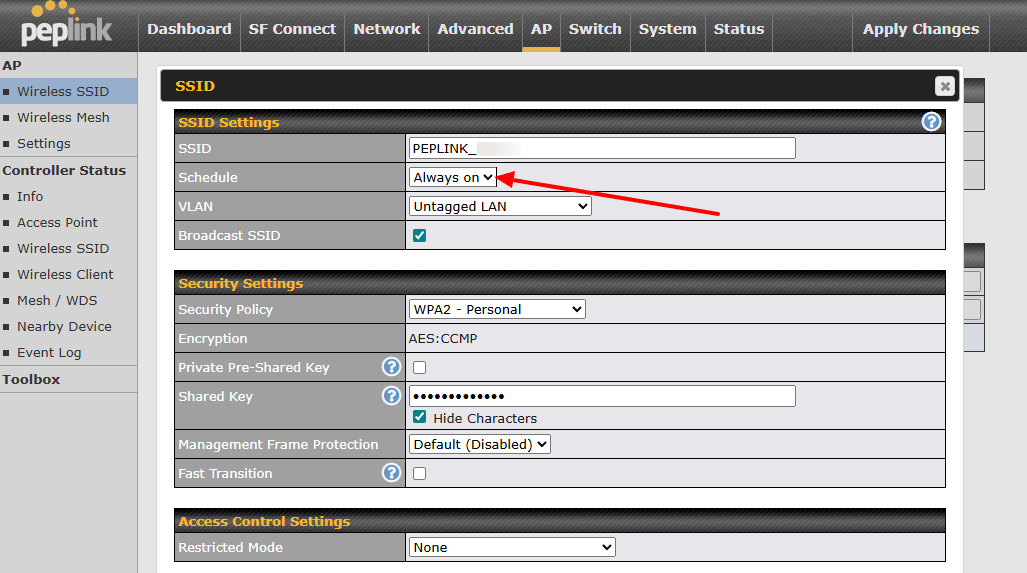
Make sure to click "Save" at the bottom of the page and click "Apply changes" top right afterwards. That's it! Your SSID is now set to run on the schedule you created!
Education
Need More Help? Consider Joining Our Membership & Support our Community
MMH Explore members can join the conversation and gain access to our support forums located within the Mobile Internet Resource Center. Senior members of MobileMustHave's Technical Staff moderate the MobileMustHave.com Support Forum and tackle more advanced configurations, troubleshooting, and general advice.
In addition, MobileMustHave hosts monthly live webinars on advanced topics. These sessions cover everything from the basics to the more nuanced areas of configurations on Peplink devices. Past Webinars have included deep dives into; SpeedFusion Connect Protect (Cloud), Outbound Policies, VLANs, and much more.
MobileMustHave and the Mobile Internet Resource Center have staff with decades of IT experience and are there to help you when you get stuck!
Thank you for being the best part of MobileMustHave.com!
Should you need further assistance, do not hesitate to reach out to us at info@mobilemusthave.com
Was this article helpful?
That’s Great!
Thank you for your feedback
Sorry! We couldn't be helpful
Thank you for your feedback
Feedback sent
We appreciate your effort and will try to fix the article